
Setup step by step
You set up Juhupost on your own phone first and then pair your child's device. Allow about fifteen minutes. Your child doesn't have to type anything and never sees a password. The pictures show every step on a tablet and on a phone; Juhupost runs on both.
Before you start
Create a separate mailbox for your child with an email provider, for example mia@posteo.de. Don't use your own: Juhupost creates a folder in it and sorts out mail from strangers. Which providers work well and what you need to switch on there is explained under Providers. Then install Juhupost on your phone and on your child's device.
If your child already has a mailbox of their own, just use that. Everything already in the inbox stays where it is and doesn't need approving. The same goes for devices you pair later.
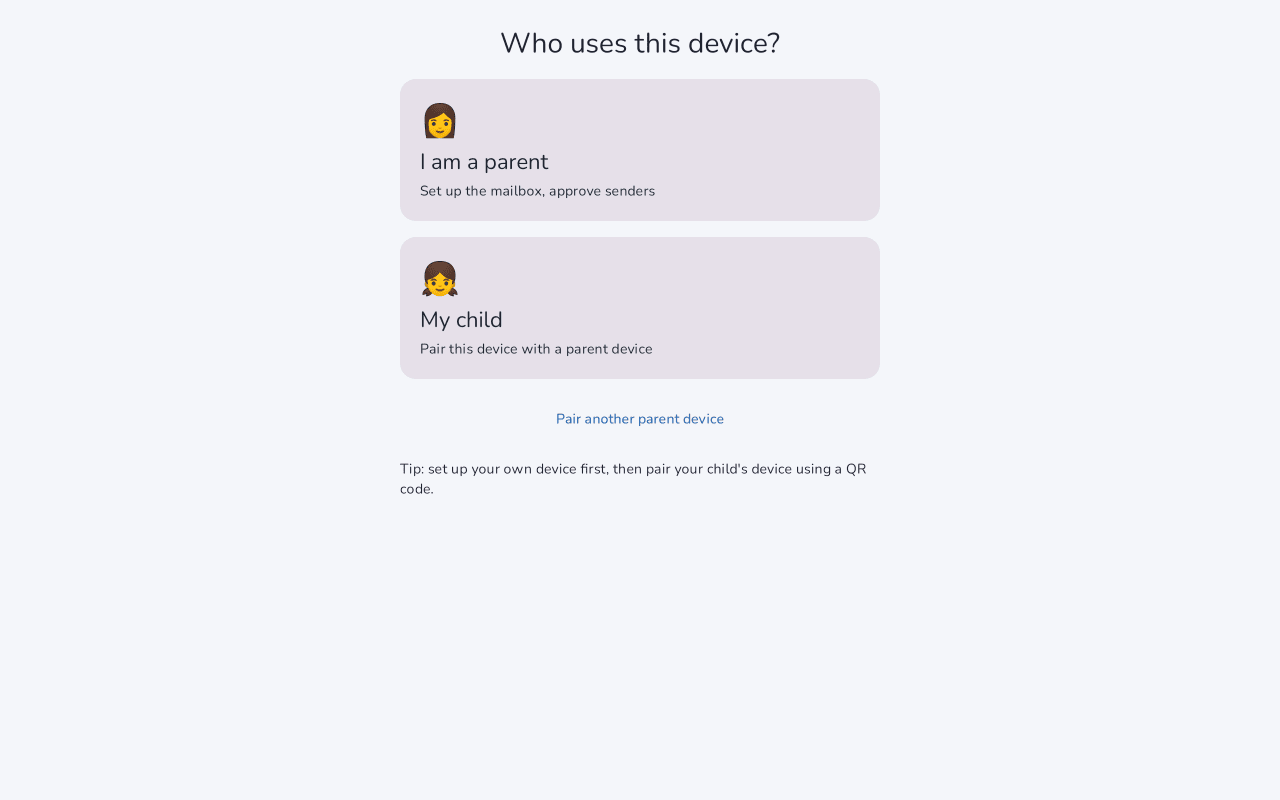
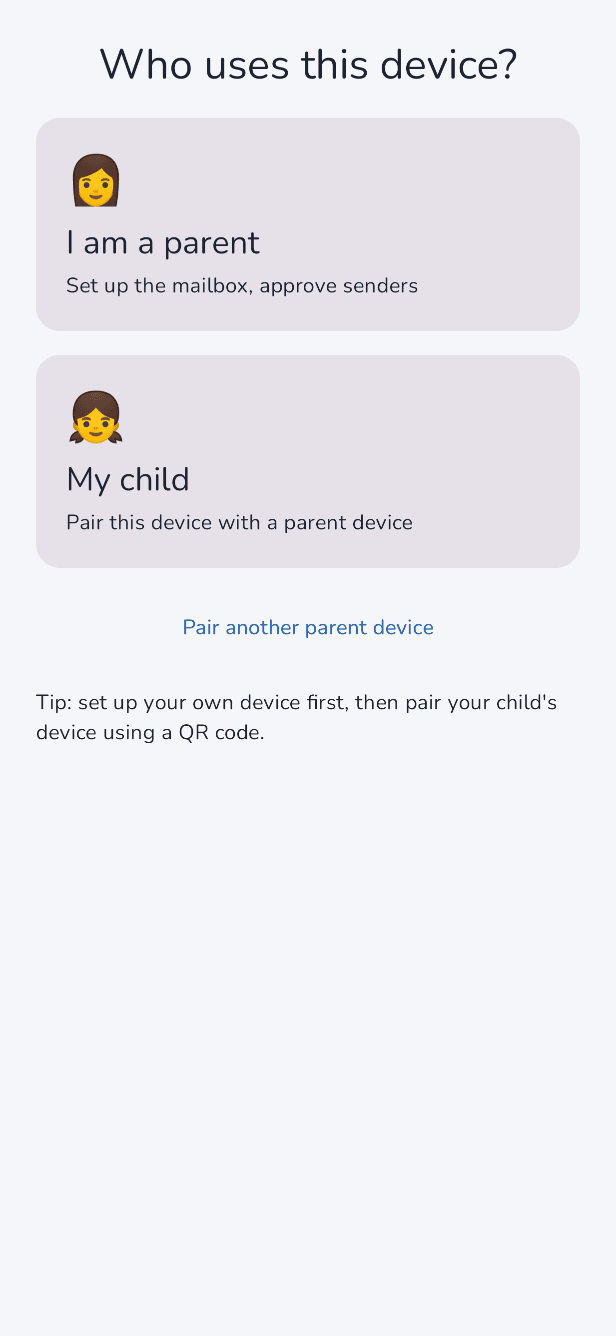
1. Who uses this device?
Open Juhupost on your phone, tap “Let's go” and choose “I am a parent”.
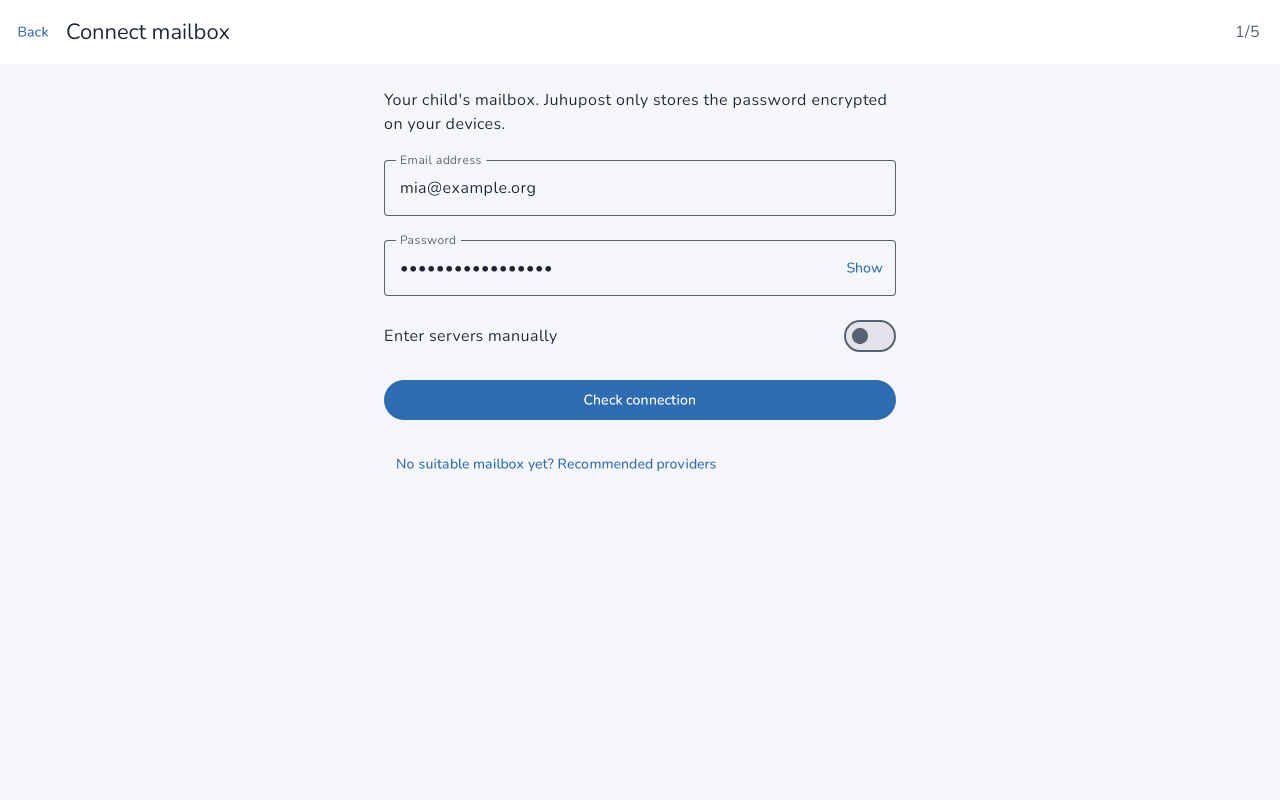
2. Connect the mailbox
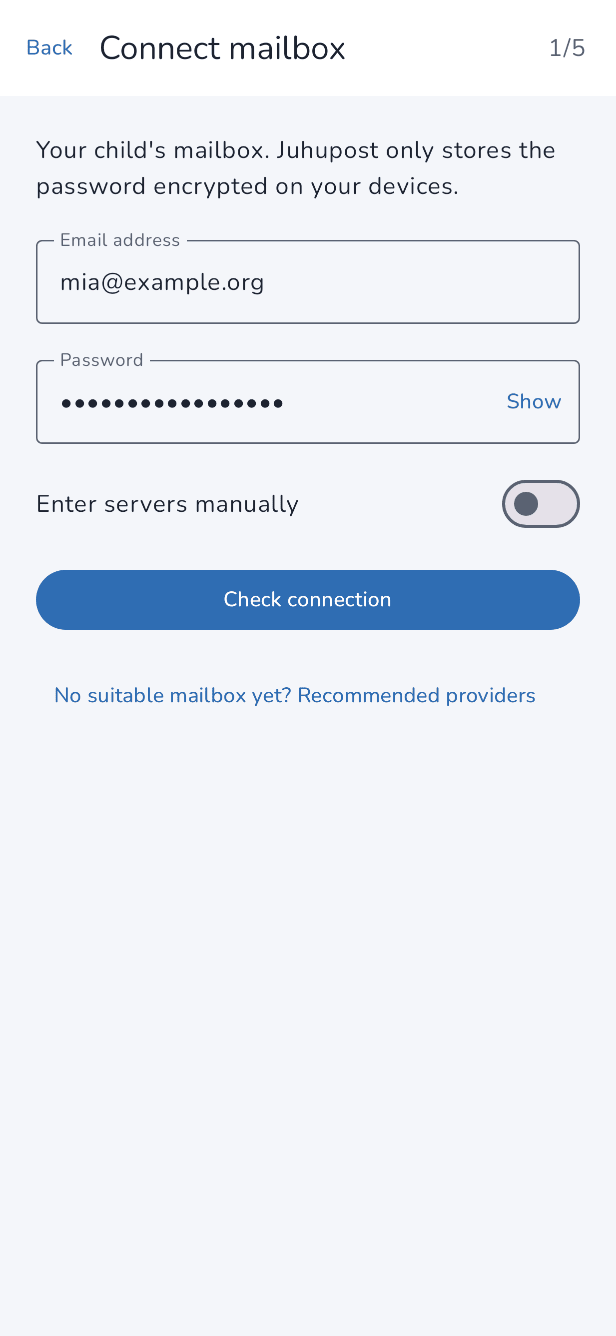
Enter the address and password of your child's mailbox and tap “Check connection”. Juhupost looks up the servers by itself. If it can't find them, enter them under “Enter servers manually”; your provider's help pages list them. Juhupost stores the password encrypted on your devices and nowhere else.
3. Your child's profile
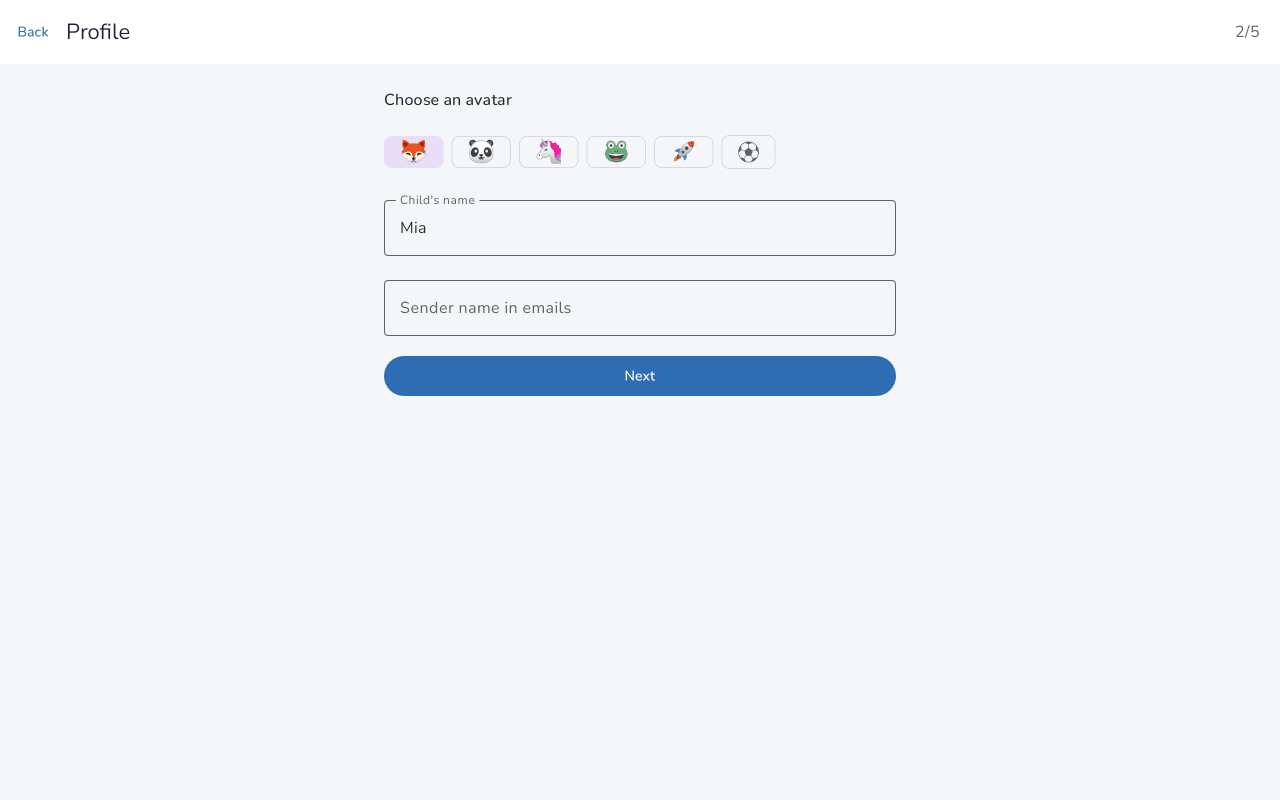
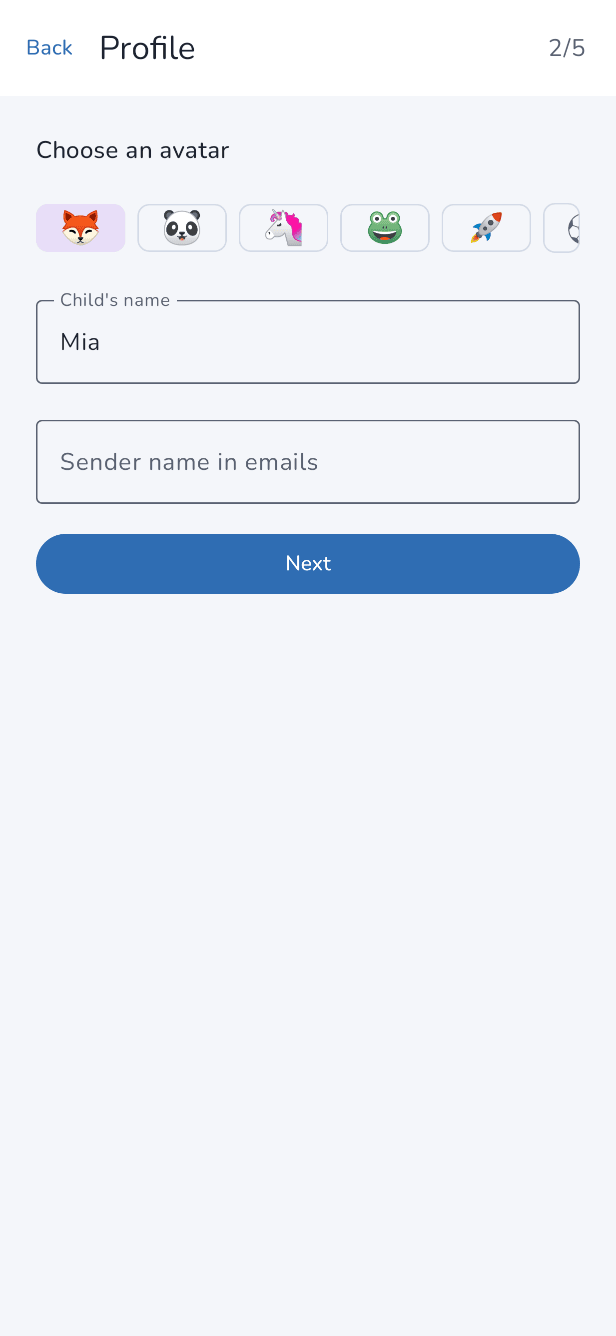
Enter your child's name and pick a picture. The sender name appears in every mail your child sends. Many families use just the first name.
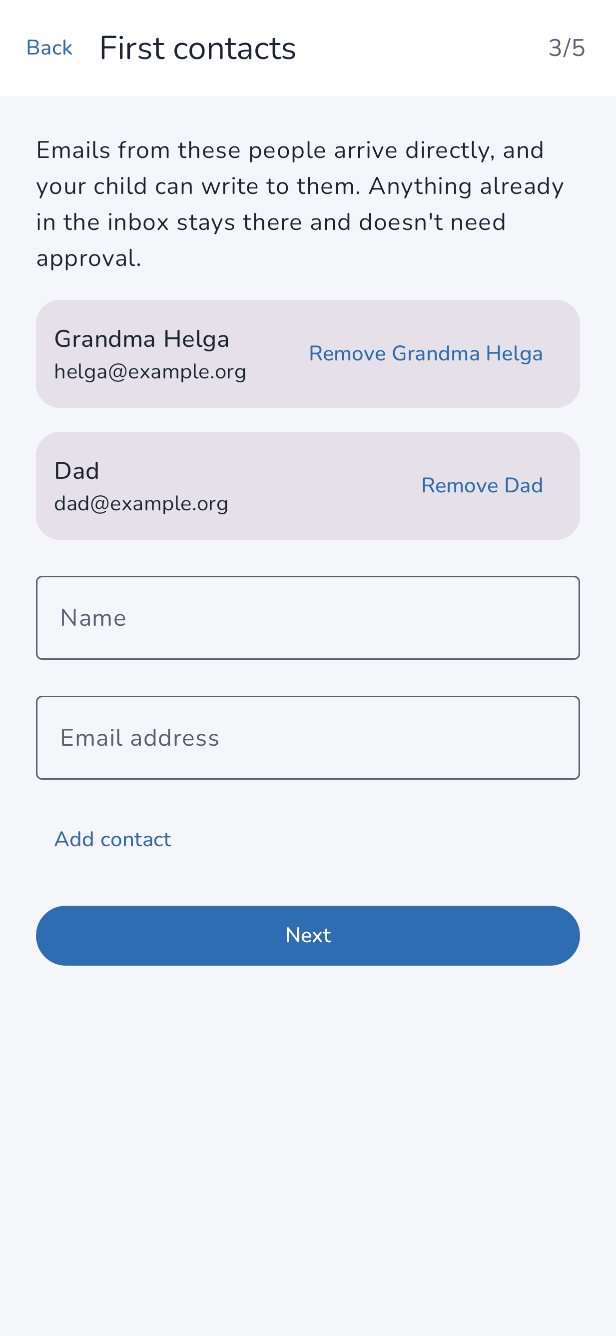
4. First contacts
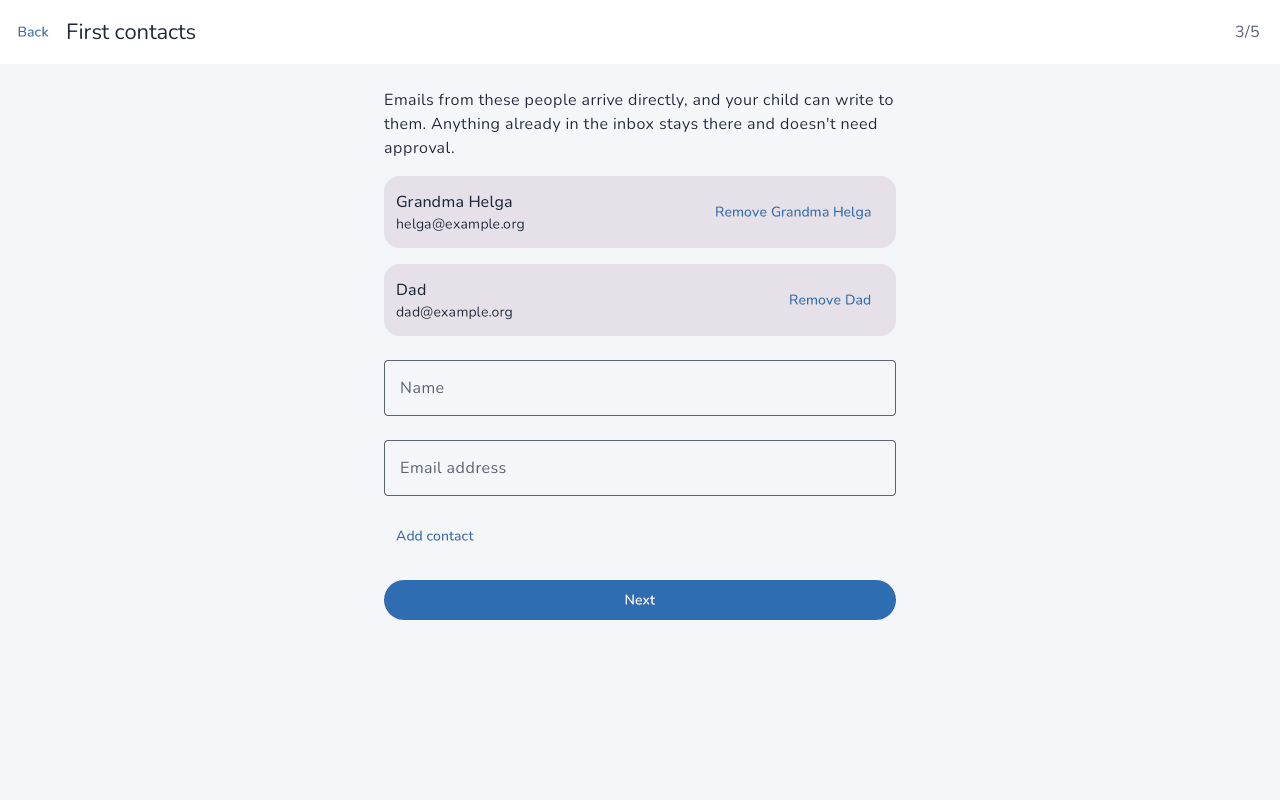
Add the people who may write to your child and whom your child may write to, such as grandparents, godparents or a best friend. Their mail goes straight into your child's mailbox. You can change the list at any time, and your child can ask for new contacts.
If mail has already been sent from the mailbox, the app suggests the recipients under “From earlier emails”, each with the number of mails sent to them. Tap “Add Lena”, for example, and Lena goes into the address book. Anyone you don't add stays out.
5. Rules
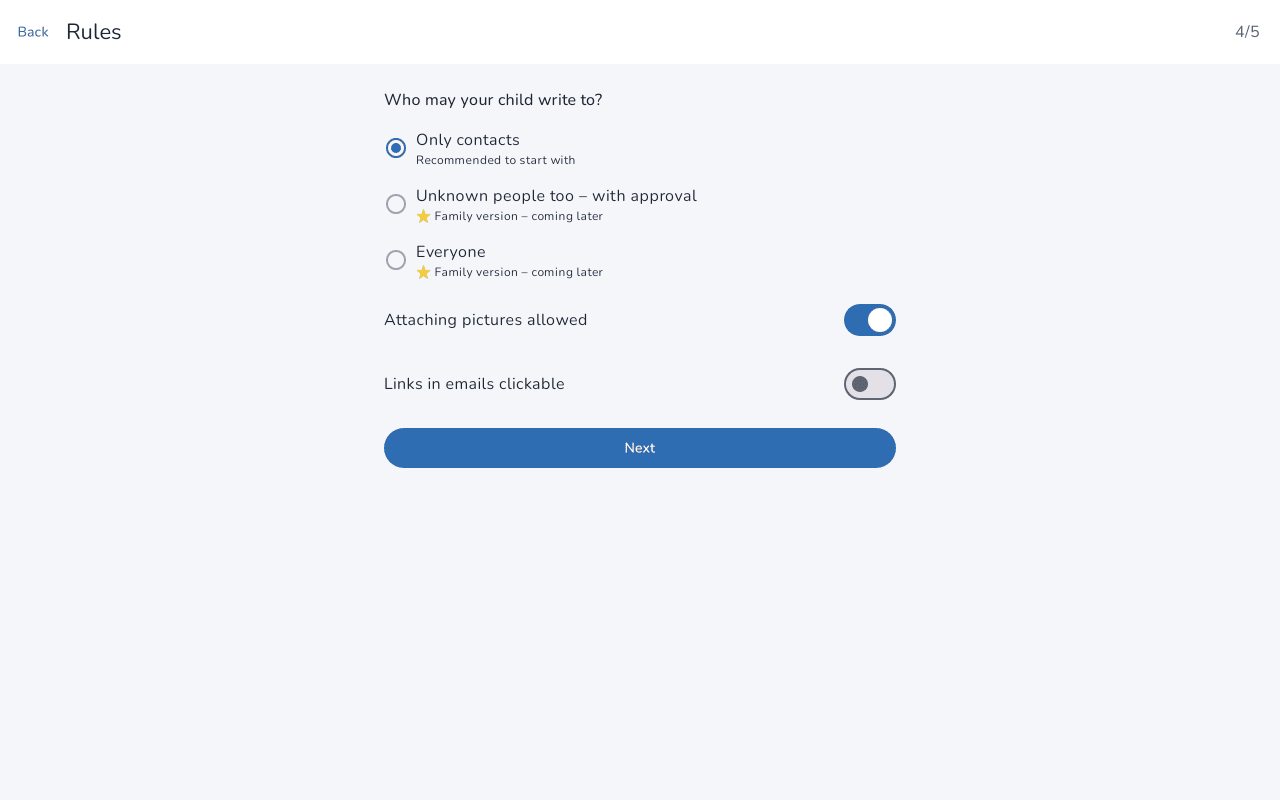
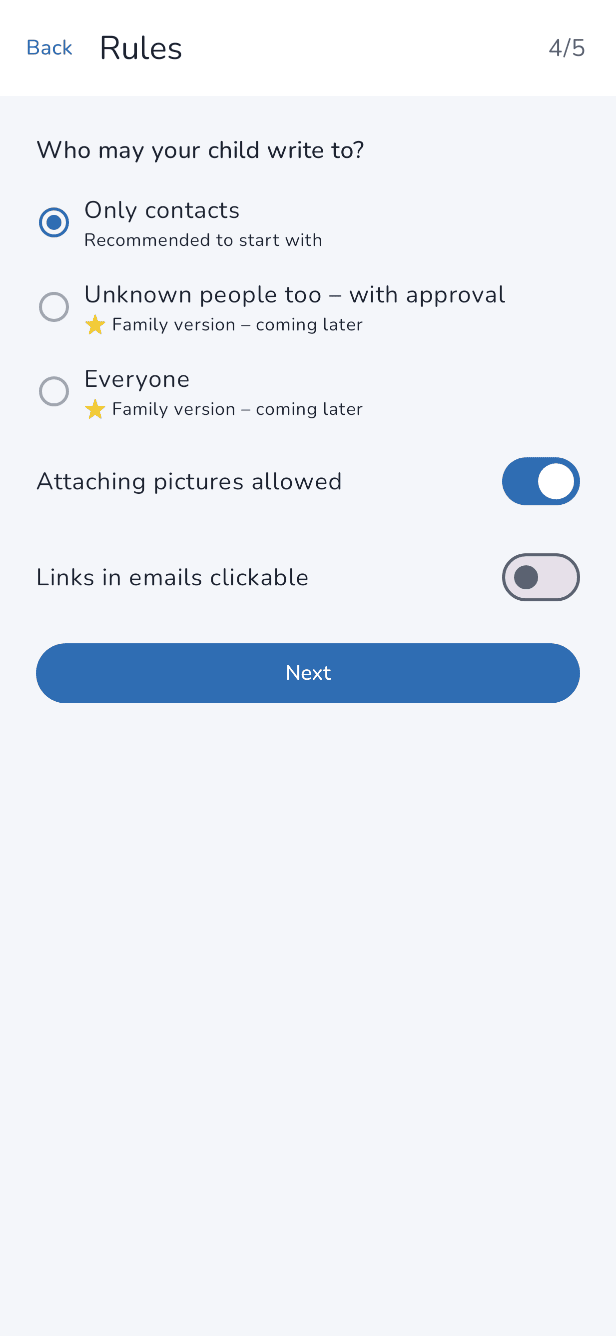
Choose whom your child may write to and whether they may attach pictures. To begin with, we recommend “Only contacts”. With Family, your child can also write to new addresses, optionally only after you approve.
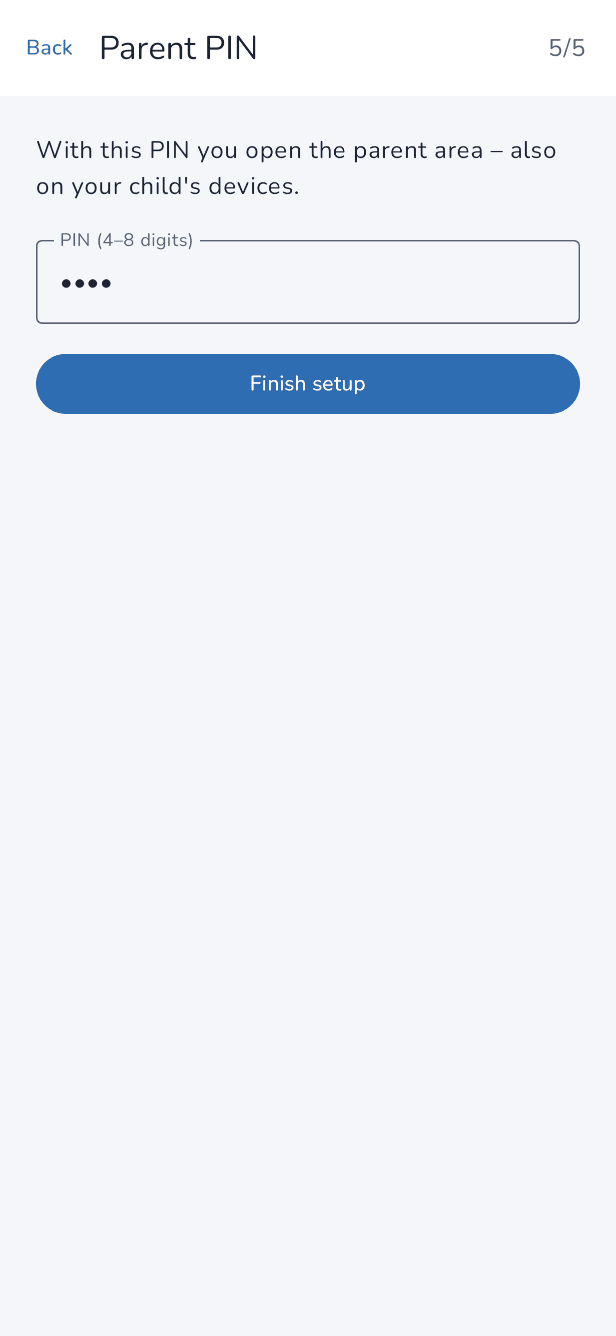
6. Parent PIN
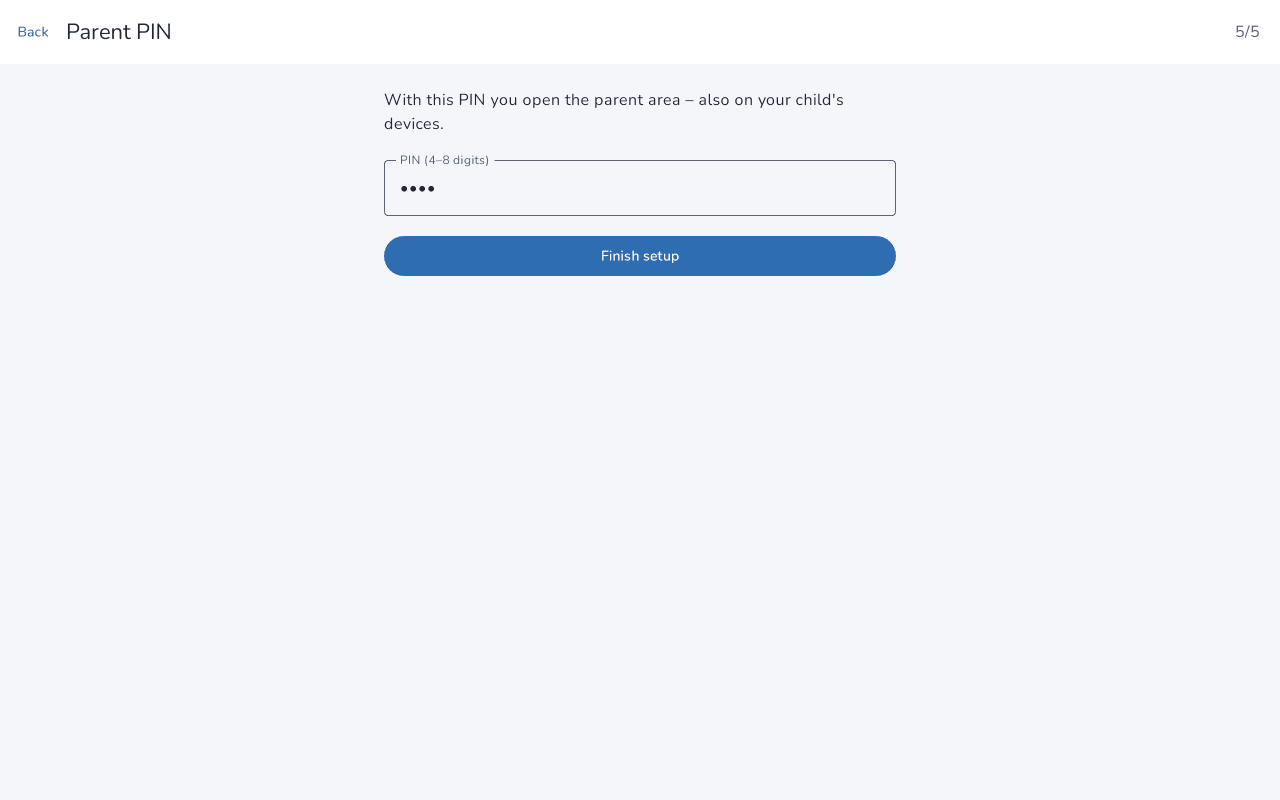
This PIN opens the parent area on your child's device. It has four to eight digits. Pick one your child won't guess. If you forget it, you can reset it with the mailbox password.
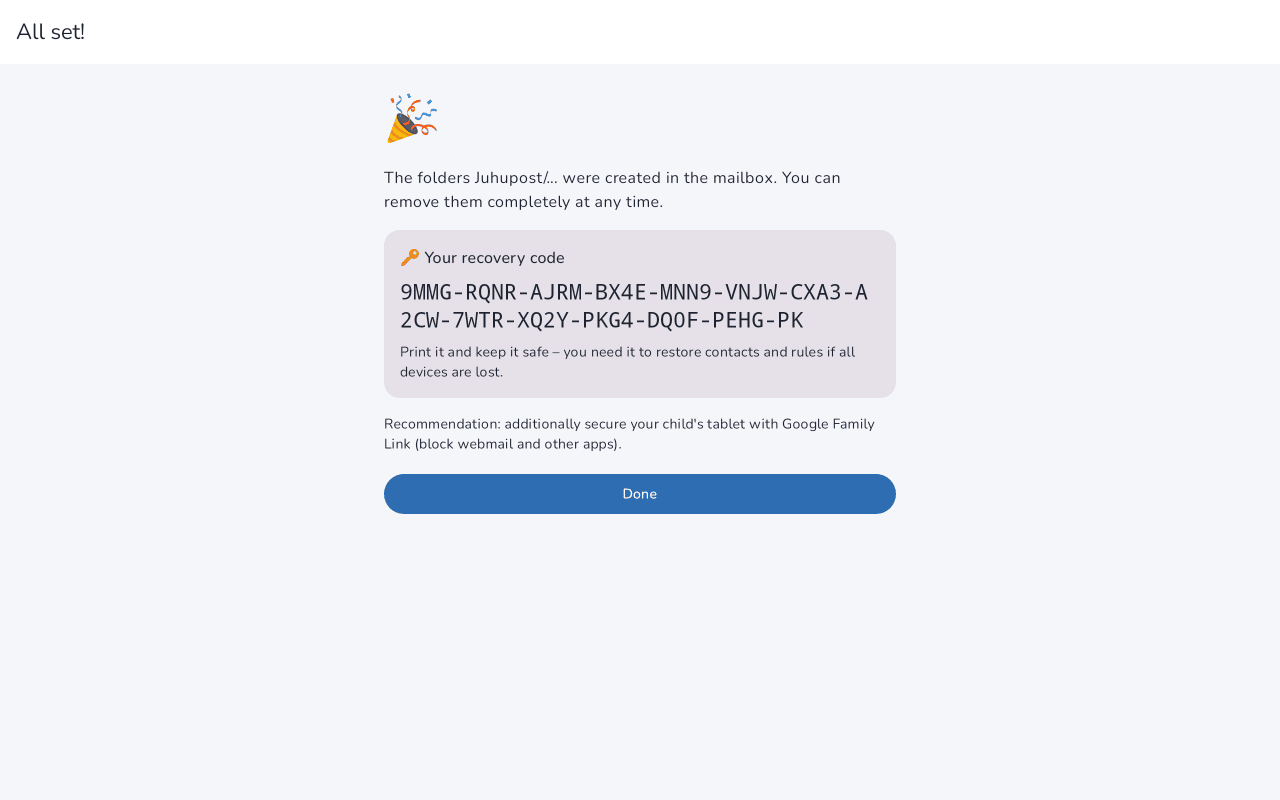
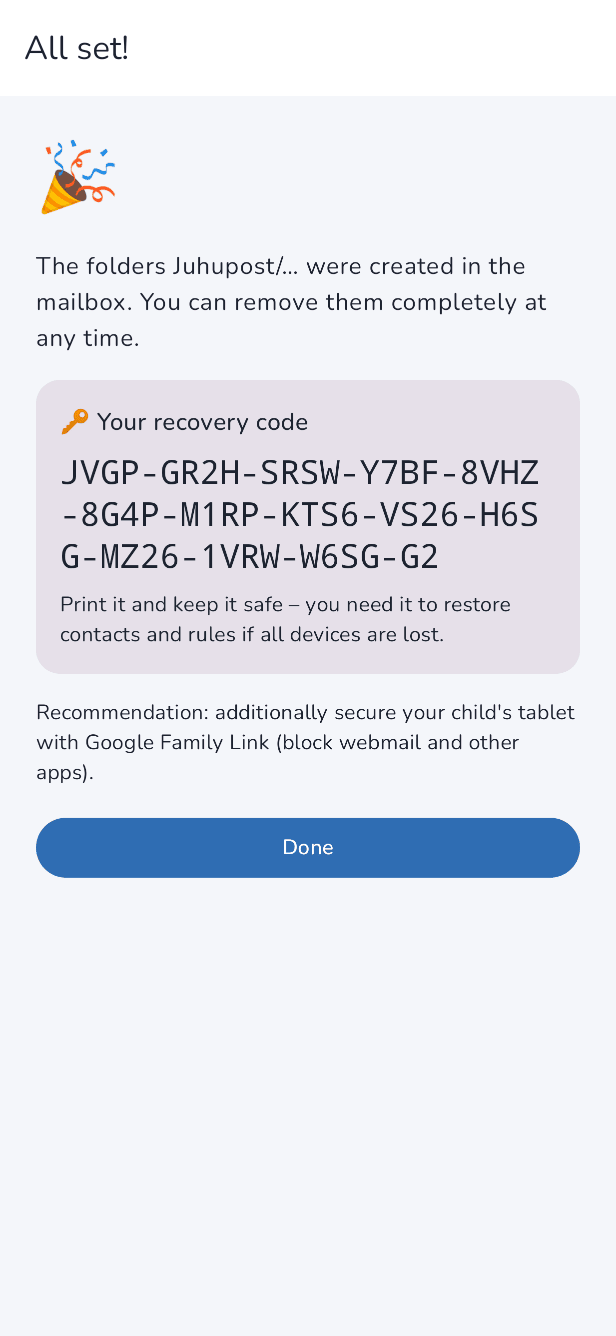
7. Recovery code
At the end, the app shows a recovery code. Print it or copy it down and keep it with your papers. If you ever lose all your devices, it brings back contacts and rules. You can also find it later in the settings under Security.
8. Pair your child's device
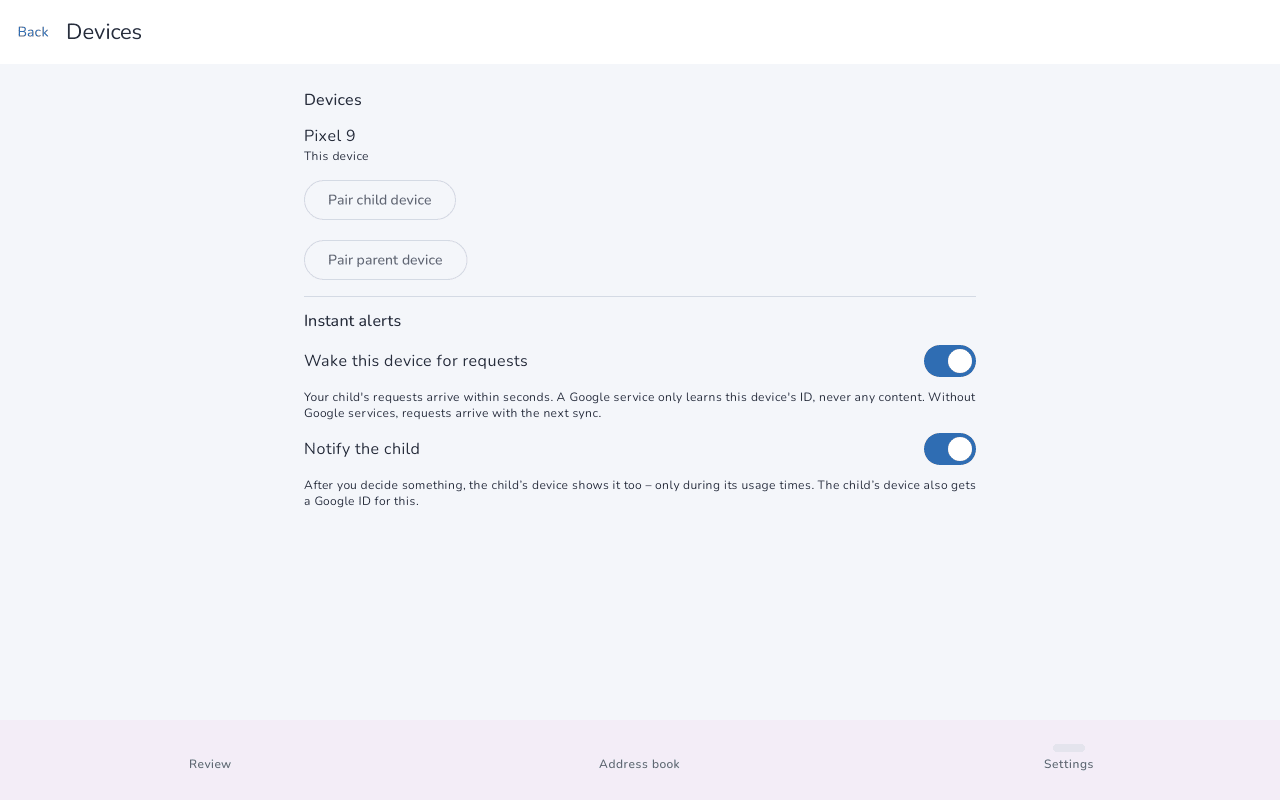
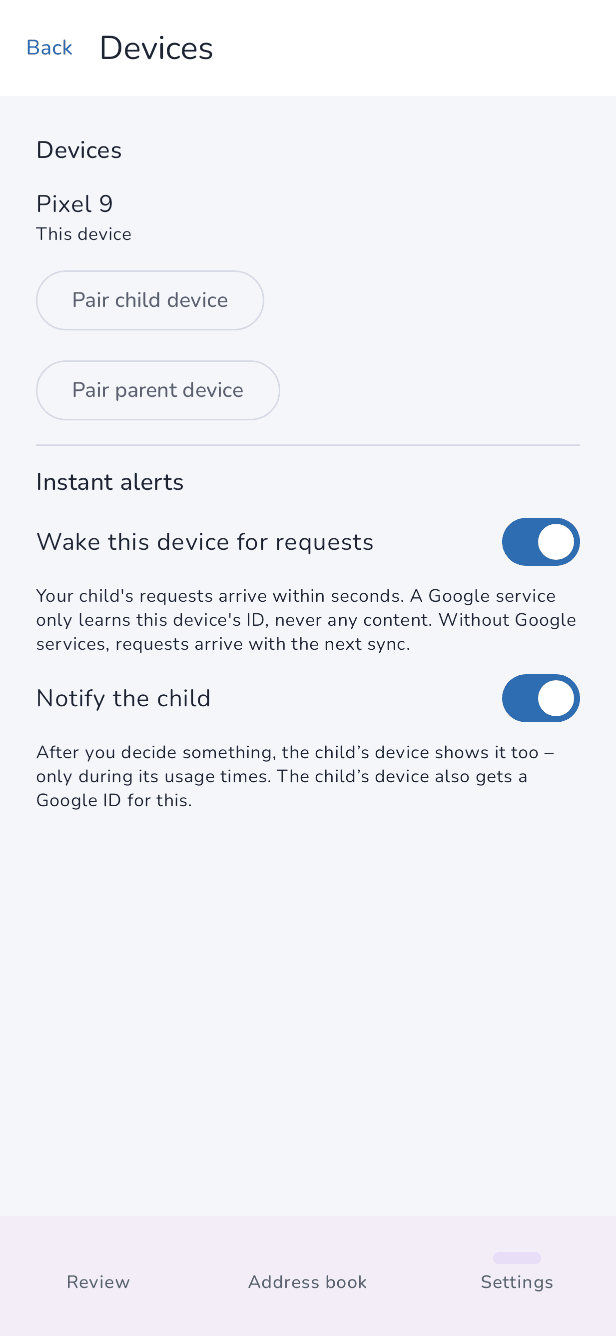
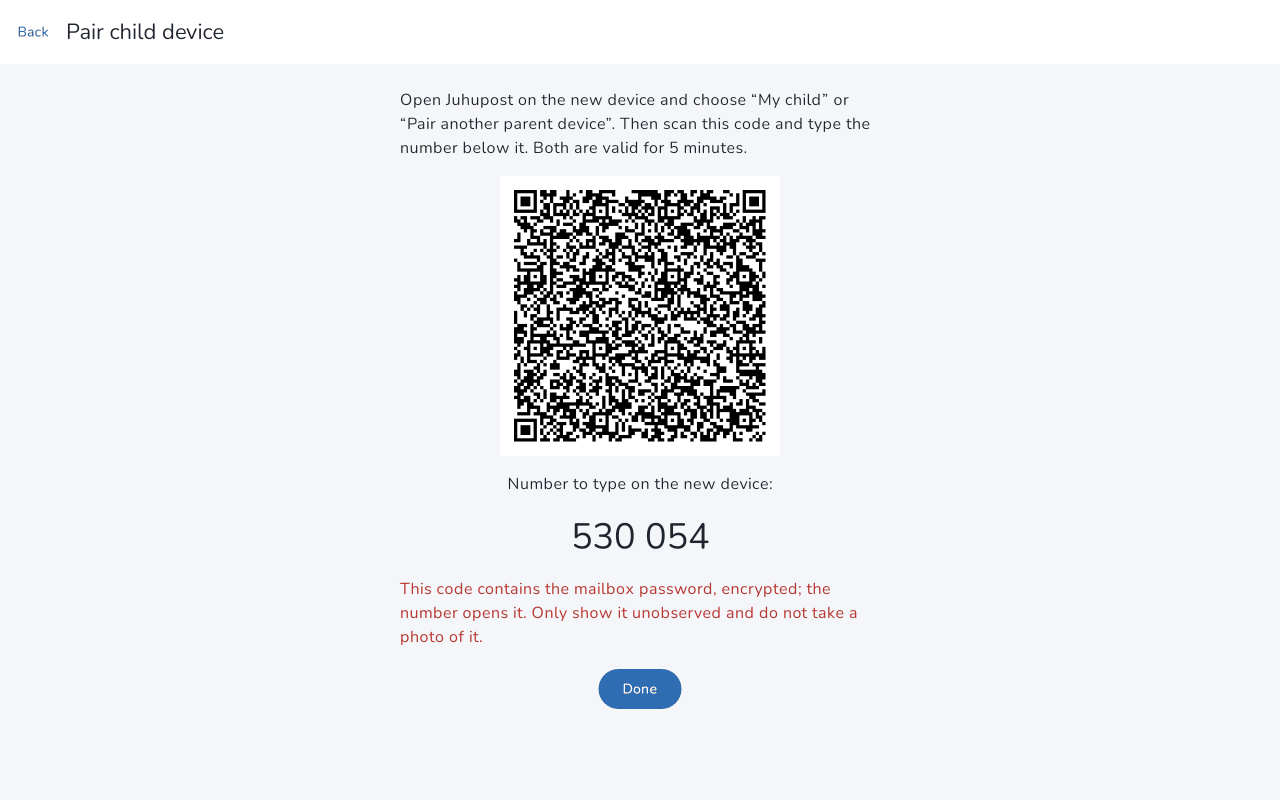
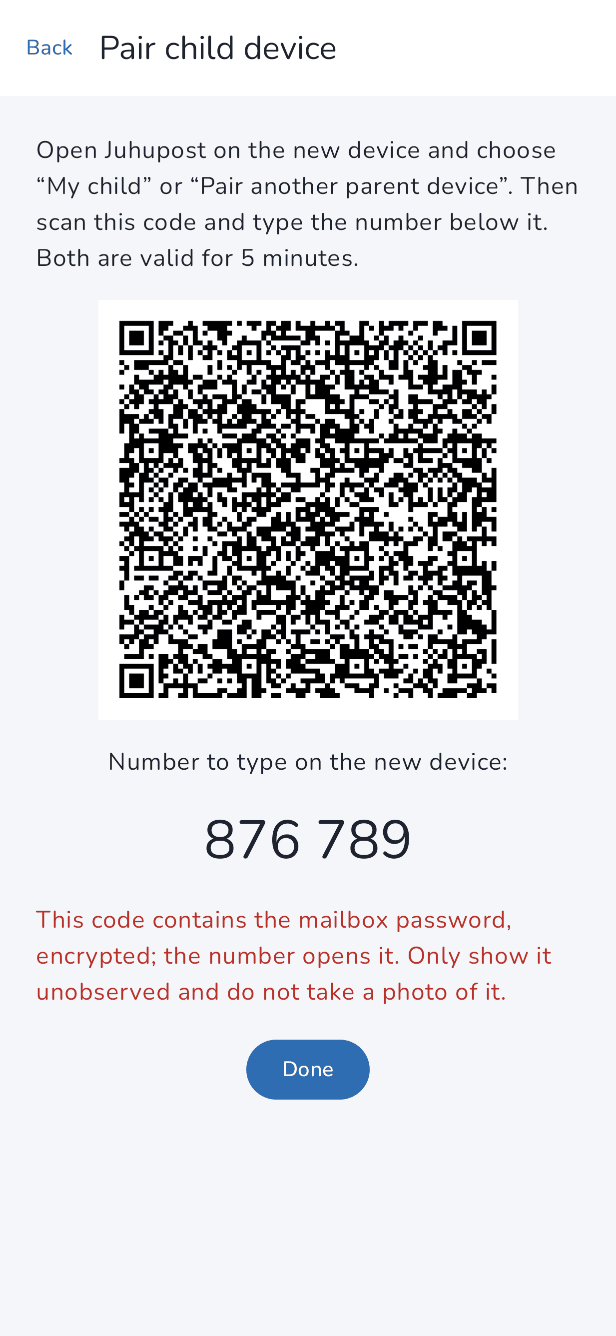
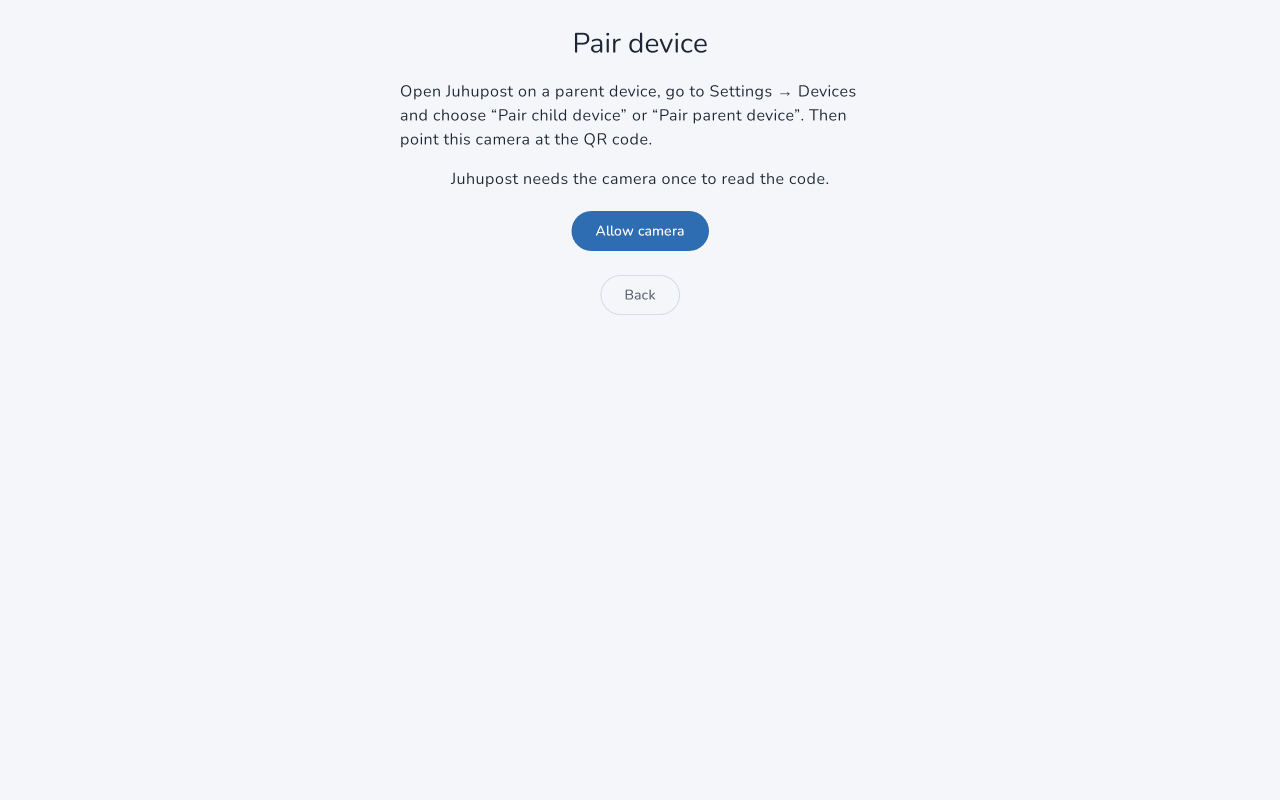
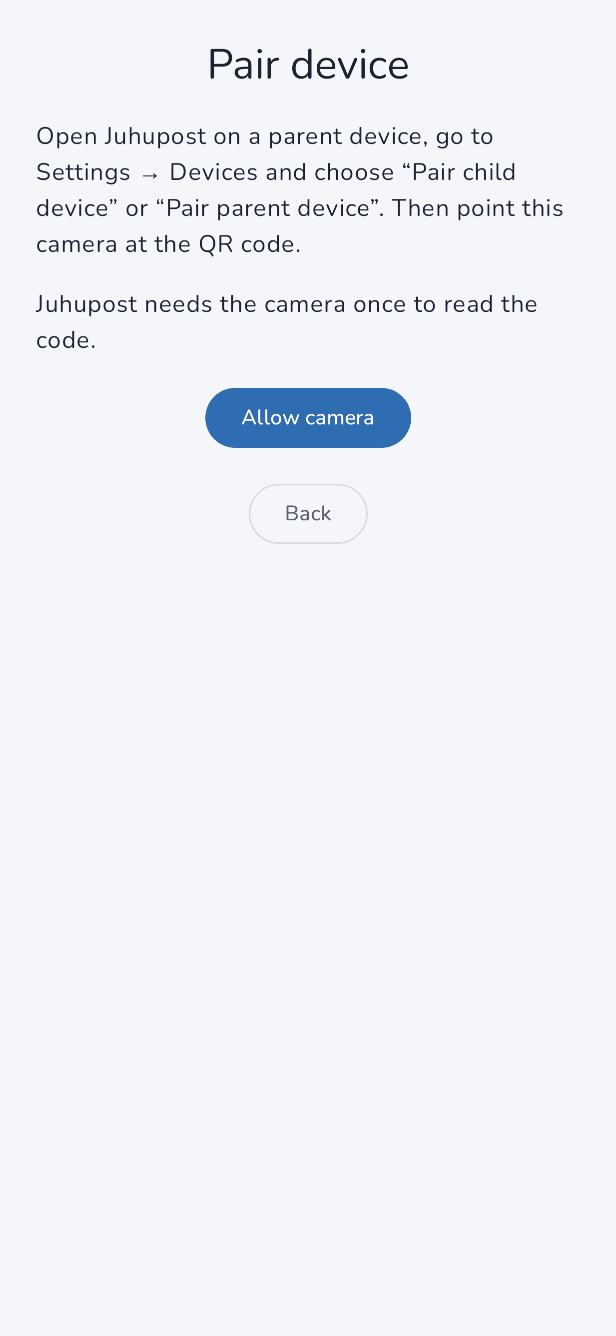
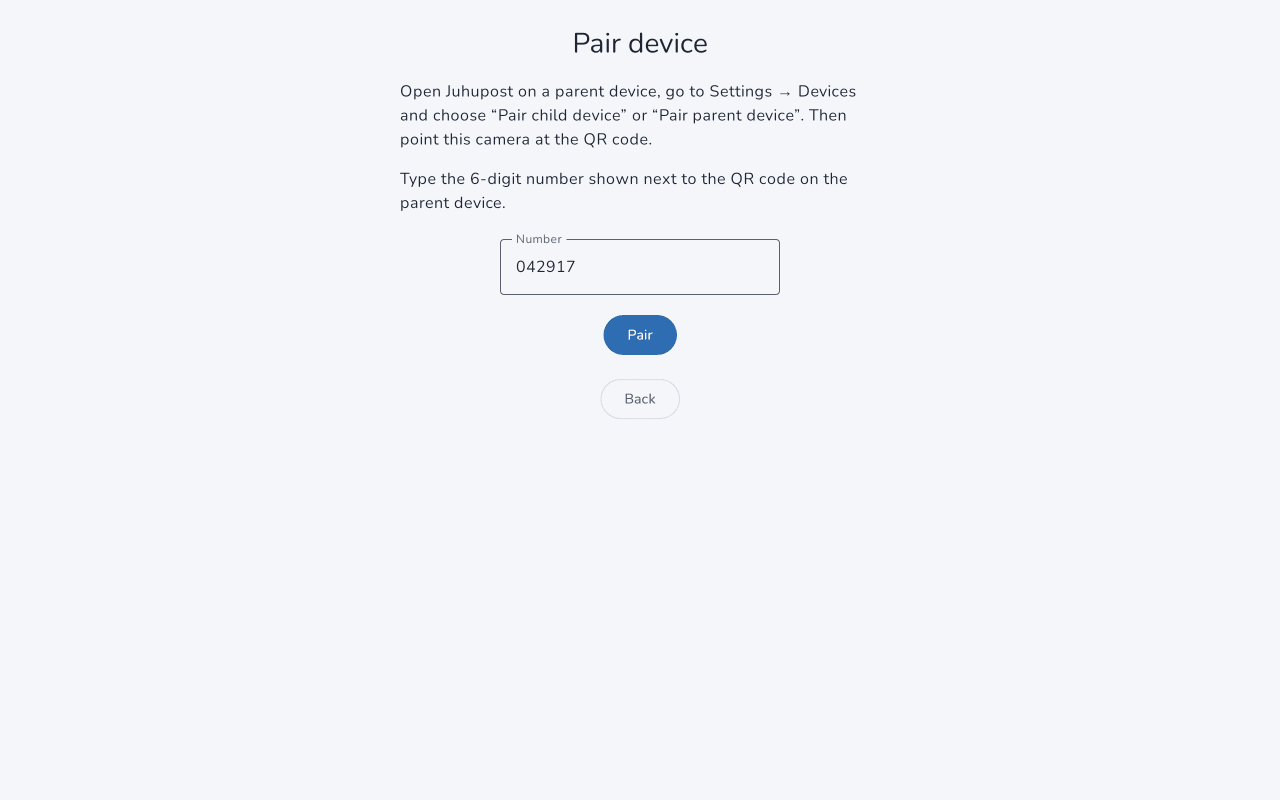
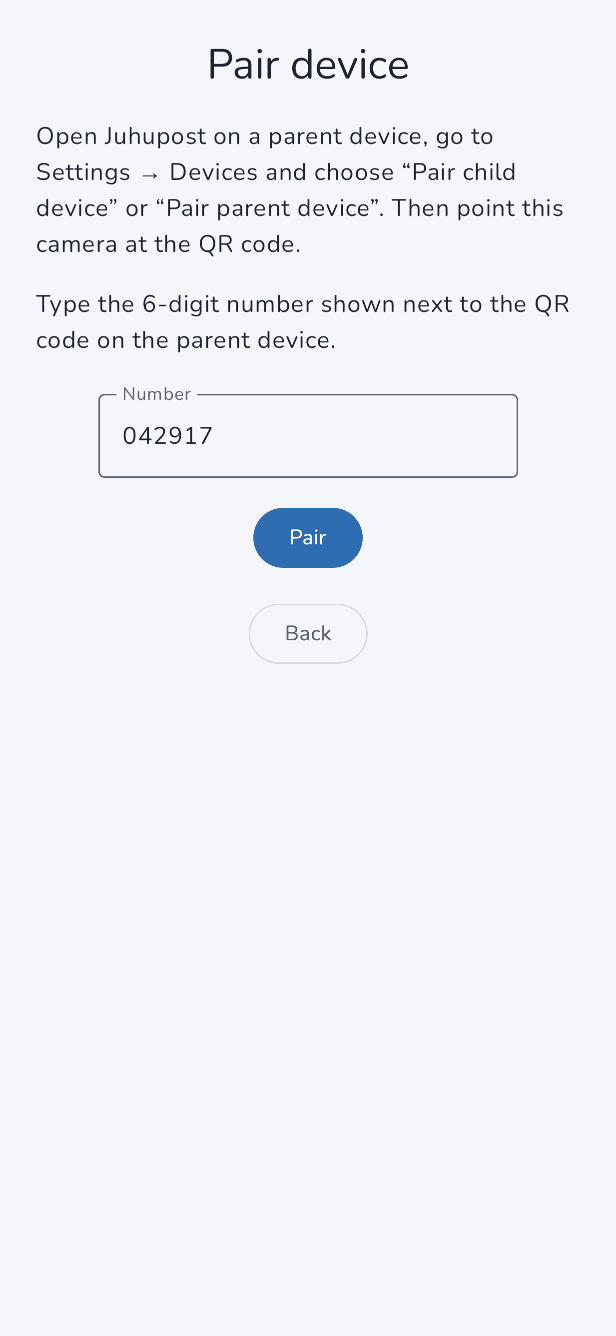
On your phone, open Settings → Devices and tap “Pair child device”. A QR code and a six-digit number appear. Open Juhupost on your child's device, choose “My child”, scan the code and type in the number. Both are valid for five minutes. The code contains the password in encrypted form, so only show it when nobody is filming.
You pair a second parent device the same way with “Pair parent device”. More than one child device and one parent device needs Family.
Extra protection for your child's device
Your child doesn't know the mailbox password, so they can't get into webmail. If you also want to control which apps they install and whether they use a browser, set up Google Family Link. Juhupost points this out during setup.

When new mail arrives
New mail first lands only in the mailbox. The mailbox doesn't tell the devices about it on its own, so the devices check in the background at set times. Out of the box, that is every two hours between 12:00 and 19:00 on weekdays and between 8:00 and 19:00 at weekends. Outside these times no device checks, which saves battery. While the app is open, mail arrives right away.
You can change the times in the settings under “Times”. The instant alert from Family doesn't replace this: it only wakes your devices when your child asks for something or a parent makes a decision.